Xbox port forwarding: How to change NAT type for online gaming


Online multiplayer games on Xbox rely on your network being able to communicate with other players’ systems. If your router restricts certain incoming connections, you might notice longer matchmaking times, voice chat issues, or difficulty joining certain players.
One way to change this is port forwarding. When configured correctly, port forwarding can help your console achieve an Open Network Address Translation (NAT), making it easier to connect with other players in party chat and multiplayer games.
This guide explains how Xbox port forwarding works, when it’s useful, and how to set it up on your router step by step.
Understanding Xbox NAT types
NAT is what routers use to manage how devices on your home network communicate with the internet. It allows multiple devices in your home to share a single public IP address while controlling how incoming connections reach devices on your network.
Because NAT blocks unsolicited incoming traffic by default, it may restrict some multiplayer connections or cause matchmaking delays. Xbox consoles classify your connection into three NAT types based on how easily your console can communicate with other players.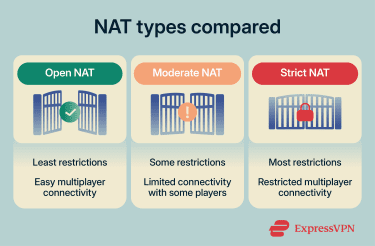
- Open: The least restrictive NAT type. Your console can connect with most players and host multiplayer sessions without major limitations.
- Moderate: Works for most multiplayer sessions, but you may have difficulty hosting games or connecting with players who also have Moderate or Strict NAT types.
- Strict: The most restrictive NAT type. Your console may only connect reliably with players who have Open NAT, and hosting multiplayer sessions may not be possible.
Common misconceptions
- It eliminates all lag: Port forwarding can help change your NAT type, which may improve compatibility with other players, but it can’t fix server-side issues, slow internet, or bandwidth-sharing issues.
- It’s required for online play: You can join most games with any NAT type, but Strict or Moderate NAT can prevent you from hosting or connecting to some players, depending on the game.
- It fixes every network issue: It addresses NAT-related problems, but not server outages or high ping, for example.
Learn more: Internet speed for gaming: How fast do you really need?
Is port forwarding safe for Xbox?
Opening specific ports is a widely used method to try to obtain an Open NAT. That said, there are risks associated with the process itself.
Because port forwarding allows external connections to reach a device on your network, it slightly increases exposure compared to leaving those ports closed. However, when you forward only the ports required for Xbox services, the risk is generally low for a home gaming setup.
Following the correct setup steps and forwarding only the required ports helps ensure that port forwarding works as intended while limiting unnecessary exposure.
Learn more: Open ports – A security guide
Before you start
Before you proceed with port forwarding, here are some important steps to follow.
Check your current NAT type
You can view your NAT type at any time via your Xbox’s settings. You may find that it’s already Open, in which case you don’t need to change your port settings.
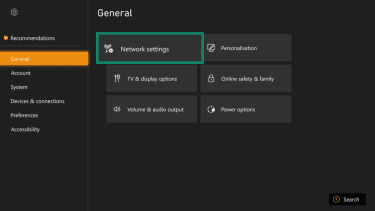
- Open the Xbox Settings and click on Network settings in the General tab.
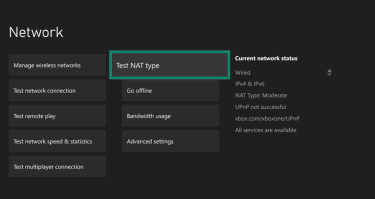
- Select Test NAT type and wait for the test to complete to see your NAT.
Assign a static IP to your Xbox
The next step is to assign your Xbox a static IP address (or reserve one through your router). If the console’s IP address changes, the forwarding rule may stop working.
- Open your Xbox's Settings menu, then click Network settings in the General tab.
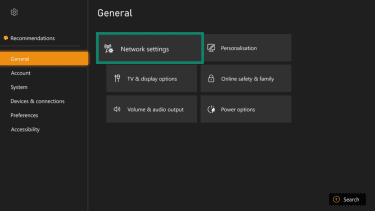
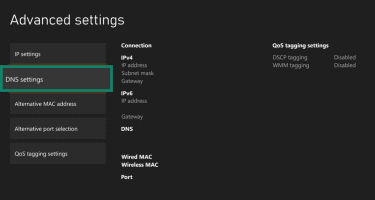
- Go to Advanced settings > DNS settings and note down your console's IP address, subnet mask, gateway, and DNS numbers.
- Log into your router’s admin page in a browser by entering its IP address (192.168.0.1 or 192.168.1.1 are common, though yours may differ).
- Find the setting that allows you to reserve or assign a static IP address for devices on your network. The location may vary based on your router model, but typical locations include: Connected devices, LAN settings, or DHCP reservation.
- Locate your Xbox in the device list and enable the option to reserve or assign a static IP address. Note down the IP address because you need this to create the port forwarding rule.
- Back on your Xbox, go to the IP settings menu in the Advanced settings tab.
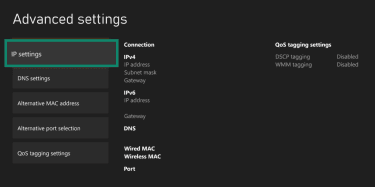
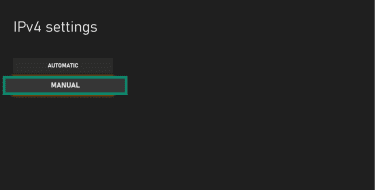
- Select Manual, then enter the IP address and other information you noted down earlier.
- Back on the Advanced settings menu, go to the DNS settings, select Manual, and enter the DNS information from earlier.
Restart the router and console
Restart both your router and Xbox to ensure the new network settings are applied. To do this, turn off your Xbox and unplug your router for about 30 seconds. Plug the router back in and wait for the internet connection to fully restore, then turn your Xbox back on.
Ports to forward for Xbox One and Xbox Series X|S
Microsoft recommends opening the following User Datagram Protocol (UDP) and Transmission Control Protocol (TCP) ports:
- Port 88 (UDP)
- Port 3074 (UDP and TCP)
- Port 53 (UDP and TCP)
- Port 80 (TCP)
- Port 500 (UDP)
- Port 3544 (UDP)
- Port 4500 (UDP)
Ports for Xbox 360
For Xbox 360, use ports 88 (UDP), 3074 (UDP and TCP), 53 (UDP and TCP), and 80 (TCP). You may also want to add 1863 (UDP and TCP) if you’re using Video Kinect.
Learn more: TCP vs UDP – Understanding the key differences
How to set up port forwarding for Xbox
The process can vary depending on the router, and some may not even offer port forwarding. As such, the steps below are more of a general guideline; be sure to check your router manual.
- Log into your router’s admin page through a web browser.
- Locate the port forwarding settings, which are typically found in Port forwarding, NAT forwarding, Virtual server, or Port mapping menus.
- Enter your Xbox's IP address into the relevant field or select it from a device menu.
- Create new port forwarding rules for each relevant port by entering the port number and selecting the protocol (TCP or UDP).
- Save your changes and reboot your router and Xbox.
How to test if it worked
After setting up port forwarding, there are a couple of relatively simple ways to verify that the process has worked to change your NAT type:
- Re-run the NAT type test on your Xbox.
- Try a multiplayer game or Xbox Live party chat; if you notice fewer connectivity issues, that’s also a sign that your network conditions have improved.
Alternatives to port forwarding
You don’t need to set up port forwarding to solve NAT and performance issues on your Xbox. Several other options exist.
Enable UPnP
Universal Plug and Play (UPnP) is a networking protocol that allows devices on your network to communicate directly with the router and request specific ports be opened for them. In other words, your Xbox can automatically request that the router open ports.
This is a convenient alternative to manual port forwarding, and many modern routers support it. You can enable it via your router’s admin page or control panel.
Learn more: How to open ports on your router
Set up a demilitarized zone (DMZ)
A DMZ forwards all inbound traffic directly to the console.
Like UPnP, DMZ is something you’ll need to set up in your router’s control panel, using your Xbox’s static IP address.
Note that this isn’t recommended unless the other options aren’t possible. This is because, while it’s relatively safe to use on an Xbox, it exposes all ports, and IP changes could result in increased exposure to incoming connections. So, while it’s effective for Open NAT, it's less secure than only forwarding specific ports.
Troubleshooting common port forwarding issues
You may encounter issues during or after setting up port forwarding on your Xbox. Here are some examples and ways to fix them:
- Ports still closed or NAT type is still Moderate or Strict: Double-check you’ve entered your IP address and the port numbers/protocols in correctly. Also, ensure your router's firewall isn’t blocking the forwarded ports.
- UPnP conflict: If enabled, UPnP may interfere with your manual port forwarding settings. Disable it in the router settings if you're using manual forwarding.
- Double NAT: If you have multiple routers or a modem-router combination, set one or more of them to bridge mode or contact your internet service provider (ISP) to eliminate conflicts.
- Carrier-Grade NAT (CGNAT) or ISP blocks: If your ISP uses CGNAT, it can override port forwarding settings you’ve configured. Request a public/static IP from your ISP, enable IPv6 if supported, or try a port forwarding VPN to bypass it.
- Still lagging with Open NAT: If you’re still experiencing connection issues, check your internet speed, reduce the number of connected devices and background processes when you play, or use Ethernet instead of Wi-Fi.
- Teredo error messages (in some games): Adjust your firewall to allow Teredo or enable IPv6.
Best practices to stay secure
- Follow the port forwarding instructions closely; double-check IP and ports.
- Assign rules only to your Xbox’s static IP.
- Avoid long-term DMZ use (rather opt for UPnP or manual forwarding).
FAQ: Common questions about Xbox port forwarding
What ports should I forward for Xbox?
What does port forwarding do for gaming?
Does Xbox use UDP or TCP?
How can I test if port forwarding is working for my Xbox?
What if my ports are still closed after trying to port forward?
Are there risks to port forwarding with my Xbox?
Can I get Open NAT without port forwarding?
Take the first step to protect yourself online. Try ExpressVPN risk-free.
Get ExpressVPN














 Support Center
  FAQ
FAQ  VPN Setup Tutorials