What are internet cookies and how do they work?



Cookie banners appear on nearly every website, but many users dismiss them without fully understanding what they consent to. Knowing what cookies are can help explain what data websites store, why they store it, and how that affects privacy.
This guide explains what internet cookies are, how they work, the main types, their benefits and risks, and how to manage them in your browser.
What are internet cookies?
Internet cookies (or HTTP cookies) are small pieces of data that a website asks a browser to store. In most cases, they’re a routine and harmless part of browsing.
Most modern websites rely on essential cookies to function. They help sites manage security, maintains essions, remember settings, and support analytics.
How do internet cookies work?
On many websites, especially those operating under UK and EU cookie rules, strictly necessary cookies may be set without consent, whereas non-essential cookies are typically set only after a user consents. When a website sets a cookie, the browser stores that website’s cookie together with the attributes included in the Set-Cookie instruction, which control how the cookie behaves.
Examples of attributes include Secure, Max-Age, and Expires. A Secure attribute means the browser sends the cookie only over encrypted HTTPS connections. Expires and Max-Age control how long the browser keeps the cookie before it expires.
How websites store and send cookies
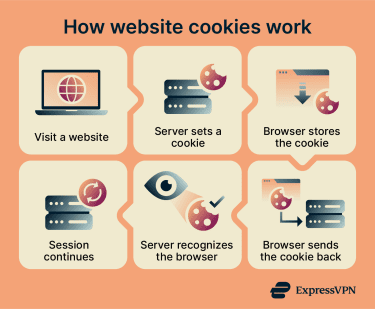
Cookies facilitate communication between a browser and a website’s server through standard HTTP requests and responses. This exchange happens automatically in the background:
- User visits a website: When someone opens a website, the browser sends an HTTP request to the site’s server asking for a specific page or resource.
- Website server sends a cookie: The server responds with the requested page and includes a Set-Cookie instruction in the response headers.
- Browser saves the cookie: The browser stores the cookie in its cookie storage, typically using domain and path rules to determine when to send it back.
- Cookie returning to the server: On subsequent requests that match those rules, the browser automatically includes the cookie, allowing the server to recognize the browser or session. If the cookie is persistent, that recognition can continue across browser sessions.
Why do websites use cookies?
Websites use cookies to support many of the interactive features people expect on the modern web. The World Wide Web runs on HTTP, a stateless protocol that retains no memory between requests.
HTTP was designed this way to keep the protocol broadly interoperable and scalable. Because each request is independent by default, servers treat each page visit as a new interaction unless the website adds a way to preserve context.
Cookies help do this by storing small pieces of data in the browser and sending them back with later requests that match the cookie's scope rules. This lets websites maintain sessions and support multi-step processes, such as checkouts or forms that span multiple pages. Without cookies, many sites would lose a common way to preserve state between requests, which could lead to repeated logins or re-entry of information.
Types of internet cookies and what they save
Cookies store small pieces of data in the browser. Technically, a cookie contains a name-value pair, along with attributes that tell the browser how to handle it. In practice, cookies can be grouped by how long they last, which domain sets them, and what role they play on a website.
Session cookies
These are temporary and typically expire at the end of the current browsing session. Websites use them to manage short-term interactions, such as keeping a user signed in while navigating pages, preserving form progress, or maintaining a shopping cart during a visit. In some browsers, session restore features can cause sessions to persist across restarts.
Persistent cookies
The browser stores these cookies until a set expiration date or until they are deleted. They help websites recognize returning browsers and retain information across visits, such as saved preferences or login-related identifiers.
First-party cookies
These are generally set by the site the user is visiting. The browser sends them back according to the cookie’s scope rules, such as its domain and path settings. They often support core site functions, user experience features, security, and performance measurement.
Third-party cookies
These are created by a domain other than the one being visited. They have often been set when a page loads external content, such as ads, embedded videos, or social media buttons. Advertisers and analytics providers have used them for cross-site tracking and advertising measurement, though modern browsers increasingly restrict or block this behavior.
Authentication cookies
These help websites verify that a user is signed in and associate requests with the correct account. They often store a session or login-related identifier so the site can keep the user authenticated across pages. Depending on how the site is designed, they may be session-based or persistent.
Preference cookies
These remember choices, such as language, region, currency, and display settings like dark or light mode, so the site can apply them on future visits. They often improve the user experience, though whether they are considered strictly necessary depends on the function and the applicable legal rules.
Legacy cookie-like tracking methods
In the past, some websites also used Flash cookies and “zombie” cookies, though both are now largely obsolete.
Flash cookies (or Local Shared Objects) used Adobe Flash instead of the browser and stored data in a separate location on the device. Because they were stored separately from the browser’s normal cookie store, deleting browser cookies did not remove them. This could enable persistent tracking by advertisers and analytics providers.
Zombie cookies also enabled persistent tracking, even after being removed. They could recreate deleted cookies using backup data stored outside the browser, sometimes in Flash storage.
These practices faded after Adobe discontinued Flash in 2020 and blocked Flash content from running at the beginning of 2021. Major browser vendors also disabled Flash.
Notably, the U.S. Federal Trade Commission (FTC) settled charges against the advertising network ScanScout in 2011 over its use of Flash cookies.
Benefits and risks of accepting cookies
Cookies can make browsing more convenient, but not without trade-offs. Understanding the practical advantages and privacy implications helps you make informed decisions about whether to accept or reject them.
Benefits of cookies
- Convenience: Cookies can help prevent sudden logouts, expired forms, or lost progress while browsing.
- Personalization: Websites can reopen with the same language, location, and personalization settings, rather than resetting to default every time.
- Tailored content: Cookies can help websites surface content and promotions based on past activity, though this same profiling can also raise privacy concerns.
- Reliable operations: Session and security cookies can help distinguish legitimate activity from suspicious behavior, supporting fraud detection and account protection.
- Services improvement: Data collected through cookies can help site owners identify friction points, simplify navigation, and make measurable improvements over time.
Risks of cookies
- Cross-site and long-term tracking: Third-party cookies can help build persistent user profiles covering site visits and browsing habits across multiple sites, although modern browsers increasingly restrict this behavior.
- Limited transparency and varying compliance: Some websites describe their cookie practices in vague or inaccessible terms, and not all follow privacy laws consistently. In some cases, third parties may make tracking appear to be first-party, which can obscure who is collecting the data and raise compliance concerns under privacy laws.
- Security vulnerabilities: Authentication cookies can be exploited through cross-site scripting (XSS) attacks if a website doesn't configure them securely. Attackers who steal these cookies may be able to impersonate users and access accounts without credentials. This is mainly a risk of how websites handle cookies, not of accepting them. The strongest protections come from secure site design, such as using HttpOnly, Secure, and SameSite attributes and preventing XSS.
- Data exposure during breaches: If a website is compromised, unauthorized parties can access cookie data, such as session identifiers, increasing the risk of account takeover.
Are cookies invasive?
Cookies aren’t inherently invasive. For example, session and preference cookies are often used for practical functions such as maintaining a session during a visit or remembering settings. Privacy concerns usually arise when cookies are used to track browsing behavior, build detailed profiles, or link activity to an identifiable person.
In many jurisdictions, privacy laws and related rules now limit tracking methods that bypass user choice. In the EU, cookie consent requirements mainly come from ePrivacy rules, while the General Data Protection Regulation (GDPR) applies when cookie data relates to an identifiable person. Under the California Consumer Privacy Act (CCPA), consumers have the right to opt out of the sale or sharing of their personal information, including sharing for cross-context behavioral advertising.
For example, a cookie ID linked to an email address, an IP address, purchase history, or browser fingerprinting data can allow a website or third party to associate browsing activity with a particular person. In such cases, data protection laws limit how the information may be processed and grant individuals enforceable rights over its use.
Why cookie consent pop-ups exist
Privacy rules in many jurisdictions restrict how websites use cookies and similar trackers. Websites generally need to explain what data they collect and how they use or share it. In the EU and UK, websites usually must also obtain consent before using cookies that aren’t strictly necessary.
Cookie consent pop-ups put these rules into practice and give users a visible way to exercise their choices. These banners show what types of cookies a site uses and provide options to accept, reject, or adjust settings. They also help websites demonstrate compliance.
What cookies should you accept?
Cookie consent banners typically offer three options: accept only essential cookies, accept all cookies, or adjust settings. The right choice depends on the site's privacy policy and how much data sharing is acceptable.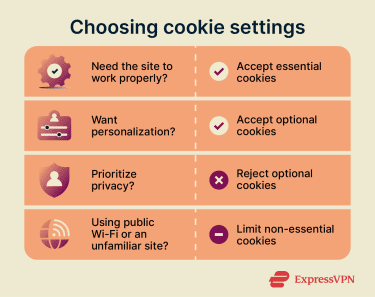
Essential cookies vs. optional cookies
Most websites recommend accepting essential cookies, and some core functions may not work properly without them. Accepting these cookies allows the site to verify access and deliver necessary features, while declining them can break functionality.
Optional cookies aren’t required for basic access, but they can enable personalization, analytics, and targeted content. Accepting them increases data sharing with the site and, in some cases, third parties. Declining them can limit tracking, though the site may not retain preferences or provide personalized recommendations. In the EU, access should not generally be made conditional on accepting non-essential cookies.
When to reject cookies
Rejecting non-essential cookies generally supports privacy. In some situations, it may also reduce exposure to certain risks, although it's not a complete security measure.
- On public Wi-Fi: Untrusted networks can increase the risk of traffic interception if a site or session is not properly protected. Limiting non-essential cookies can reduce some unnecessary data sharing, and a virtual private network (VPN) can add protection by encrypting traffic in transit.
- On suspicious or unsecured websites: If a site triggers browser security warnings or doesn't use HTTPS, cookies sent over that connection may be exposed. Declining non-essential cookies can reduce unnecessary exposure.
- When handling sensitive information: When entering financial, medical, or other private data, declining non-essential cookies can reduce third-party data collection from that visit and limit additional profiling.
How to review cookie policies
Many websites display a consent banner on the first visit, often as a bar, pop-up, or panel.
Look for an option like Settings, Manage preferences, or Your Privacy Choices. This usually opens a panel with a breakdown of the website’s cookie practices.
What to look for in a cookie policy
A transparent cookie policy should cover several specific points.
It should state a clear purpose for each category of data collection, such as improving site performance or delivering targeted advertising, and explain how long each cookie type remains active.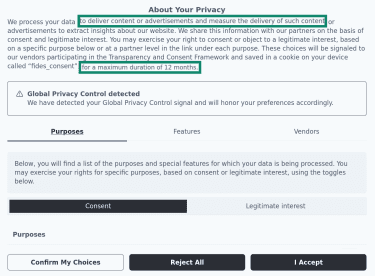
It should explain whether consent can be managed or withdrawn and provide options to accept or decline specific non-essential cookies. The policy should also provide a clear breakdown of cookie categories, with labels for essential, analytics, functional, and advertising cookies, along with brief explanations of what each does.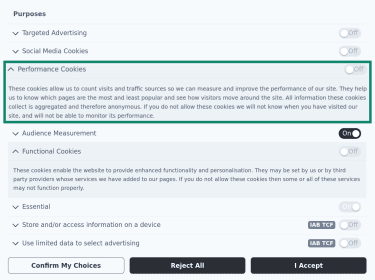
If the site uses third-party cookies, the policy should identify the external services involved, such as specific analytics or advertising providers, rather than refer to them vaguely as "partners."
Red flags in cookie notices
Not all cookie notices are transparent or compliant with data protection laws. Common warning signs include:
- No option to decline: The banner only shows an “Accept” button, with no visible way to reject or manage cookie preferences, or the option is difficult to find and requires multiple clicks.
- Pre-selected non-essential cookies: Advertising, third-party, and tracking cookies are enabled by default before you interact with the banner.
- Broad or unclear purposes: Descriptions like “for business purposes” lack specific explanations of what data is collected or why.
- No retention details: The policy doesn’t explain how long cookies remain active.
- Vague data-sharing language: The notice mentions “partners” or “affiliates” without naming specific third parties.
How to manage your cookies
Managing cookies doesn’t end with a website’s consent banner. Browsers also let users restrict certain cookies across all sites at once.
Blocking third-party cookies
Most browsers let you disable third-party cookies globally. This can reduce cross-site tracking, though it may also affect some embedded content, sign-ins, or site features. Safari already restricts third-party cookies by default. For others, see the steps below.
Blocking cookies in Google Chrome:
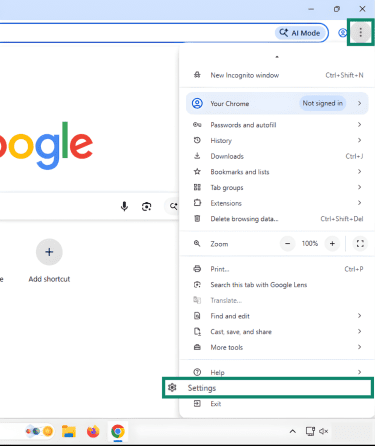
- Click the three-dot menu at the top-right corner of the screen, then open Settings.
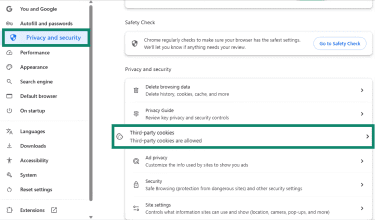
- Go to Privacy and security, then open Third-party cookies.
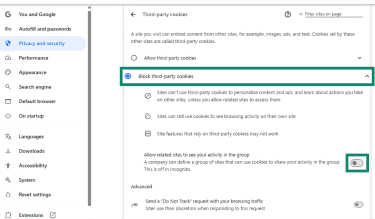
- Select the option to Block third-party cookies. Next, turn off Allow related sites to see your activity in the group.
Blocking cookies on Firefox
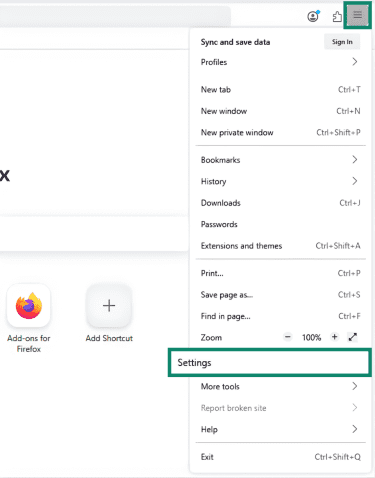
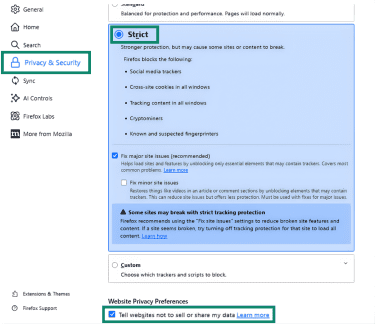
- Open Settings.
- In the Privacy & Security tab, select Strict mode and tick the box labeled Tell websites not to sell or share my data. Alternatively, under Enhanced Tracking Protection, choose a stricter protection level or review the cookie-related settings available in that section.
Read more: Firefox privacy settings: Advanced tweaks for maximum privacy.
Blocking cookies in Microsoft Edge
- Open Settings.
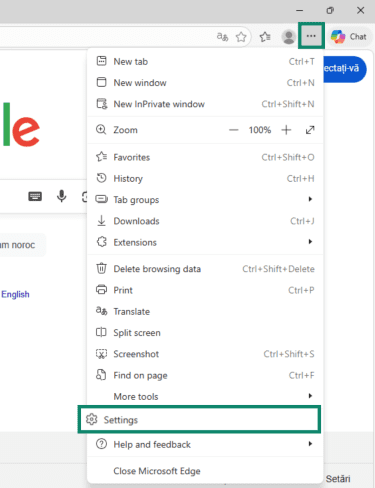
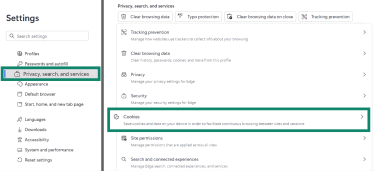
- In the new tab, go to Privacy, search, and services. From there, open Cookies or the tracking settings.
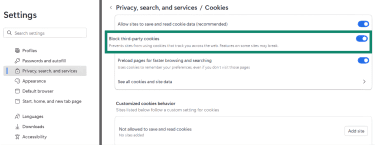
- Toggle on the option to Block third-party cookies.
Clearing cookies
Clearing cookies removes stored session data and tracking identifiers. This resets your preferences and personalization settings. However, websites might sign you out of your accounts, and sign-in my be required again afterwards.
How to clear cookies in Google Chrome
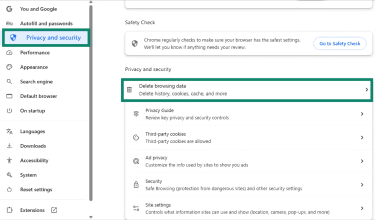
- Open Settings and go to Privacy and Security. Click on Delete browsing data.
- Choose a time range, for example, All time. Next, select only Cookies and other site data and click Delete from this device or Delete data.
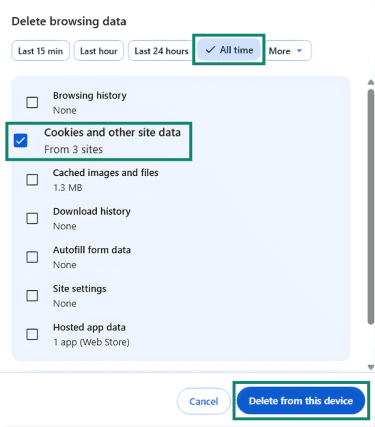
You can also select additional data types if the goal is to remove more browsing activity and stored data.
How to clear cookies on Firefox
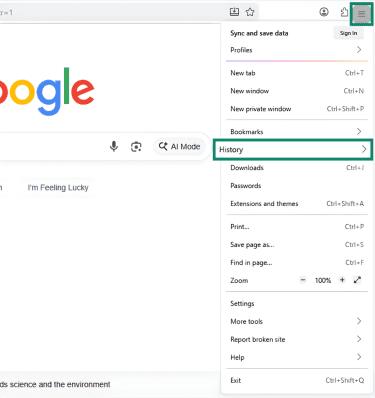
- Click on the three-line menu at the top of your screen, then click on History.
- Select Clear recent history.
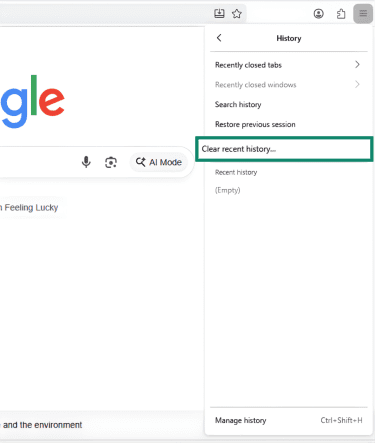
- Select a timeframe in the When section, then select Cookies and site data and click Clear.
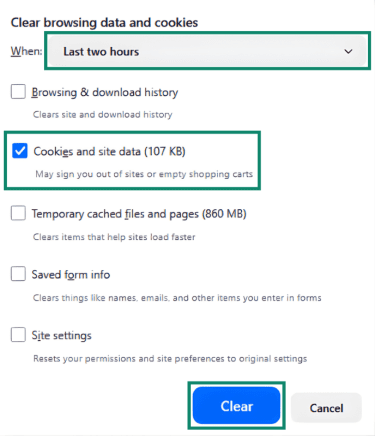
Alternatively, you can open Settings and go to Privacy & Security. In the Cookies and Site Data section, click Clear Data and choose the data to remove.
How to clear cookies on Safari
On Safari, clearing cookies also clears the cache.
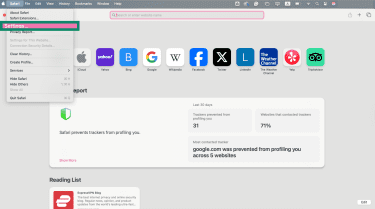
- In Safari on Mac, go to the Safari menu > Settings.
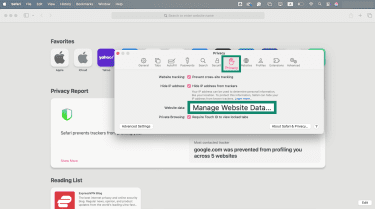
- Select Privacy, then Manage Website Data…
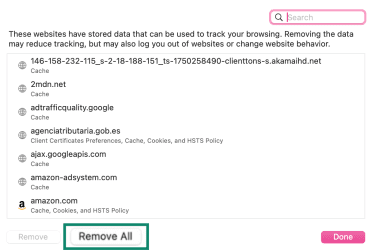
- Click on Remove All and confirm.
How to clear cookies on Microsoft Edge
- Click on the three-dot menu > Delete browsing data.
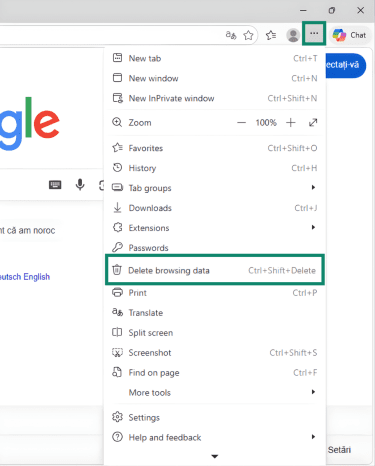
- Set a time range, select Cookies and other site data, and click Clear now.
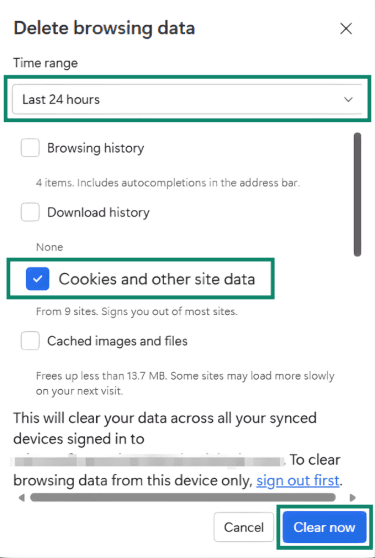
Another option might be to open Settings and more > Settings > Privacy, search, and services. Under Clear browsing data, select Choose what to clear, choose a time range, select Cookies and other site data, and click Clear now.
FAQ: Common questions about internet cookies
Should I accept cookies?
Are web cookies good or bad?
What does an internet cookie do?
What types of cookies are there?
Take the first step to protect yourself online. Try ExpressVPN risk-free.
Get ExpressVPN













 Support Center
  FAQ
FAQ  VPN Setup Tutorials